📢 Updated: 06/24/2023 / DeviceID Diagram
Hi again
If you checked this post about Create a Temporary Windows autopilot dynamic device group, you might have asked why would we care about Ids
Here’s what I’ve found about device management in HAADJ and AADJ
for HAADJ – Hybrid Azure AD joined devices we have the following structure:
- option #1 – device (AVD/WVD) is created in local AD (ADDS) and it’s synced to AAD using Azure AD Connect
- option #2 – user device is created in local AD (ADDS) during autopilot and it’s synced to AAD using Azure AD Connect
for AADJ – Azure AD joined device we have the following:
- option #1 – devices are joined to AAD from autopilot or registered manually then added to Intune based on your requirements.
when it comes to associating devices’ Id from all sources we have the following:
Active Directory Domain Services
get-adcomputer -Identity “computerName” -Properties * | select *id*
- name:
- ObjectGUID:
PowerShell Azure AD module
Get-azureaddevice
- DisplayName:
- DeviceId:
- ObjectId:
MSGraph PowerShell module
Install-Module -Name Microsoft.Graph.Intune
Connect-MSGraph
Get-IntuneManagedDevice
or
Get-IntuneManagedDevice -filter “operatingSystem eq ‘Windows'” | Get-MSGraphAllPages | Where-Object {$_.serialnumber -eq “SERIAL-HERE”}
- addressableUserName :
- userPrincipalName :
- resourceName :
- displayName :
- deviceFriendlyName :
- id : aaaaaaaa-6bb7-441d-a6b4-9d5996d77321
- purchaseOrderIdentifier : 458769963
- azureActiveDirectoryDeviceId : aaaaaaaa-b1dc-42b7-a5da-5419f5241c5f
- azureAdDeviceId : aaaaaaaa-b1dc-42b7-a5da-5419f5241c5f
- managedDeviceId : aaaaaaaa-c433-45f0-ae44-4f3cc1486775
- serialNumber : SERIAL-HERE
- deploymentProfileAssignedDateTime : 1/4/2023 11:31:46 PM
- lastContactedDateTime : 5/15/2023 4:17:42 PM
- remediationStateLastModifiedDateTime : 3/29/2023 12:16:47 AM
or either
Get-IntuneManagedDevice -filter “operatingSystem eq ‘Windows'” | Get-MSGraphAllPages | Where-Object {$_.serialnumber -eq “SERIAL-HERE”} | select *name*,*id*,*mail*
- deviceName : LOCATION-THIAGO01
- deviceCategoryDisplayName : Unknown
- userPrincipalName : thiago.beier@letsintune.ca
- userDisplayName : Thiago Beier
- managedDeviceName : thiago_Windows_7/18/2022_1:58 PM
- id : aaaaaaaa-c433-45f0-ae44-4f3cc1486775
- userId : aaaaaaaa-3740-42f8-a8fd-605ea26c99d3
- easDeviceId : aaaaaaaa
- azureADDeviceId : aaaaaaaa-d8c0-43f8-896a-e8aefecab75a
- androidSecurityPatchLevel :
- emailAddress : thiago.beier@letsintune.ca
MSGraph Powershell module
get-command Get-AutopilotDevice
Install-Module -Name windowsautopilotintune
Get-AutopilotDevice | Where-Object {$_.Serialnumber -eq “SERIAL-HERE”}
or
Get-AutopilotDevice | Where-Object {$_.Serialnumber -eq “SERIAL-HERE”} | select *id*,*name*,grouptag
- id : aaaaaaaa-6bb7-441d-a6b4-9d5996d77321
- purchaseOrderIdentifier : 458769963
- azureActiveDirectoryDeviceId : aaaaaaaa-b1dc-42b7-a5da-5419f5241c5f
- azureAdDeviceId : aaaaaaaa-b1dc-42b7-a5da-5419f5241c5f
- managedDeviceId : aaaaaaaa-c433-45f0-ae44-4f3cc1486775
- addressableUserName :
- userPrincipalName :
- resourceName :
- displayName :
- deviceFriendlyName :
- groupTag :
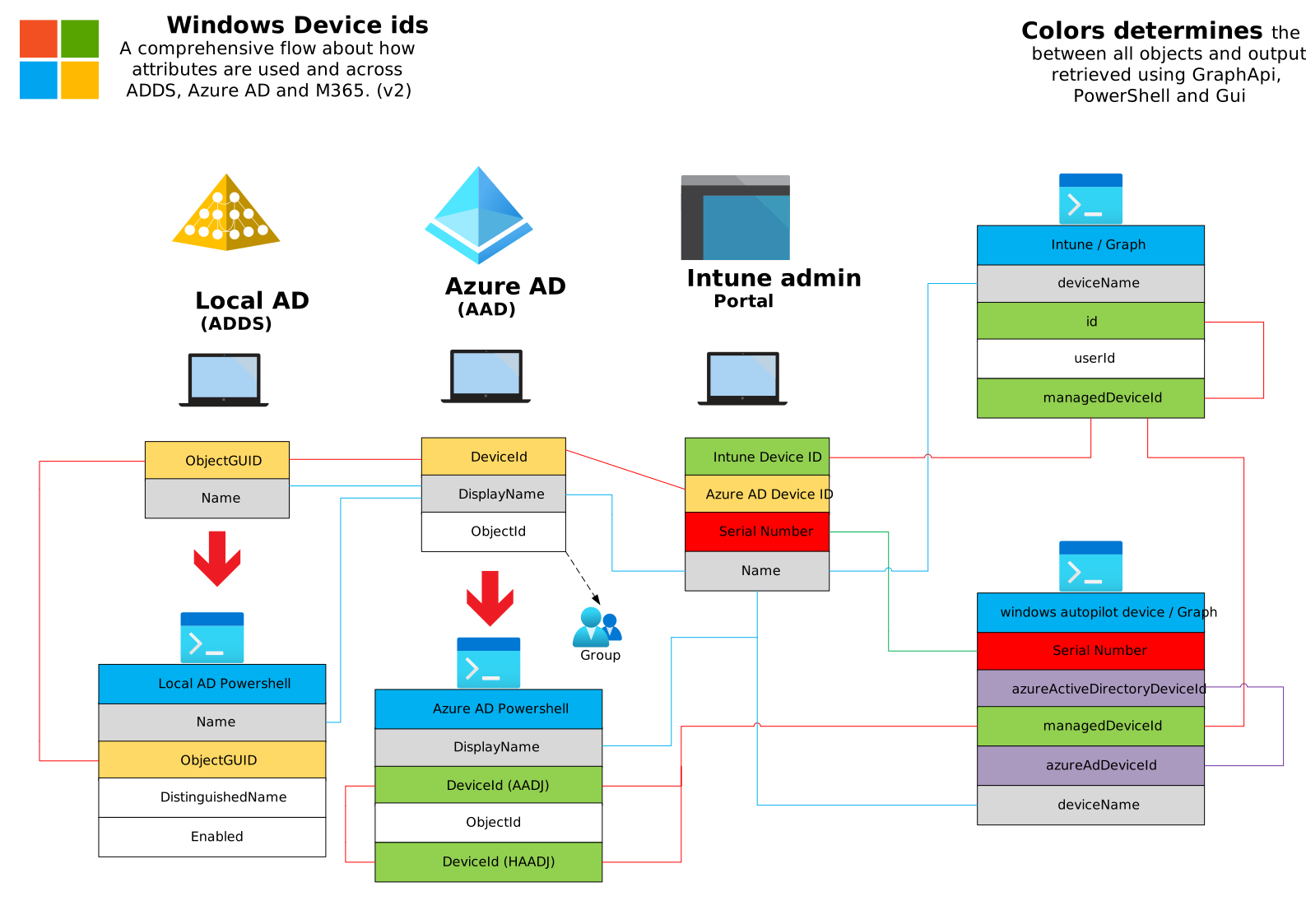
Device Extension Attributes Diagram (v2) 📢
Below you can find the correlation between all mapped extension attributes for a device from local AD (ADDS) to Azure AD (AAD) and Intune with its outputs from different PowerShell modules. If your environment has only AADJ (Azure AD joined) devices just disregard the ADDS part of it.
Being able to retrieve the correct object extension attributes helps on how you automate tasks on HAADJ and ADDJ environments.
⚠️ There are some known issues around duplicated devices in HAADJ scenario. Please check the following links for more information
From Microsoft Support Team
”
This scenario is known as a Dual state in AAD terminology where the same device ended up with two different identities in Azure AD.
This normally happens in this scenario where –
When your users add their accounts to apps on a domain-joined device, they might be prompted with Add account to Windows
If they enter Yes on the prompt, the device registers with Azure AD. The trust type is marked as Azure AD registered. After you enable hybrid Azure AD join in your organization, the device also gets hybrid Azure AD joined. Then two device states show up for the same device.
The important thing to note is Hybrid Azure AD join takes precedence over the Azure AD registered state. So your device is considered hybrid Azure AD joined for any authentication and Conditional Access evaluation. You can safely delete the Azure AD registered device record from the Azure AD portal.
”
Cheers,
Thiago Beier
Originally published at thebeier.com