← All posts
Hi again
If you’re familiar with Winget or the new App version to be installed from Intune you might need this quick tip around “fixing an app deployment mistake”.
Summary
You target the wrong device group i.e.: All Windows Autopilot Devices instead of Pilot – All Windows Autopilot Devices
What would be your first action?
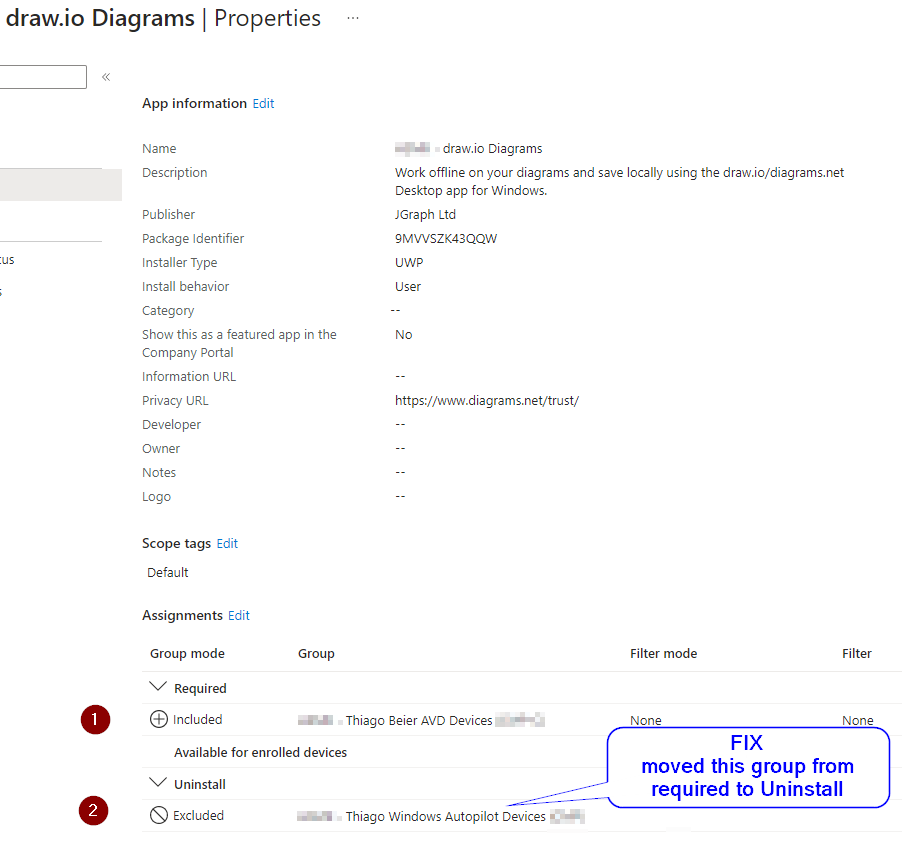
- go to the App deployed in Intune Admin Center \ Apps \ %App Name% \
- select the assignments and remove “targeted group” from the required
- add the “targeted group” assigned as Uninstall
What if that takes a lot to sync and fix the issue?
I’d rush to leverage Proactive Remediation to detect the app and quickly remove it using detection-app.ps1 and remediation-app.ps1 – Download here.
To begin this validation pick one affected machine
- and execute powershell.exe (as admin)
- run Get-AppxPackage | select * | where-object {$_ -like “*draw*”} , copy the package full name from the output
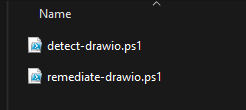
- create 2 files
- detect-drawio.ps1
- this file will detect draw.io using its full name and exit 0 or 1 accordingly to notify Intune service
- remediate-drawio.ps1
- this file will be used to also detect and remove the drawio package from the OS
- here we’re going to use Remove-AppxPackage -AllUsers -Package packageName, to remove the identified package
- this file will be used to also detect and remove the drawio package from the OS
- detect-drawio.ps1
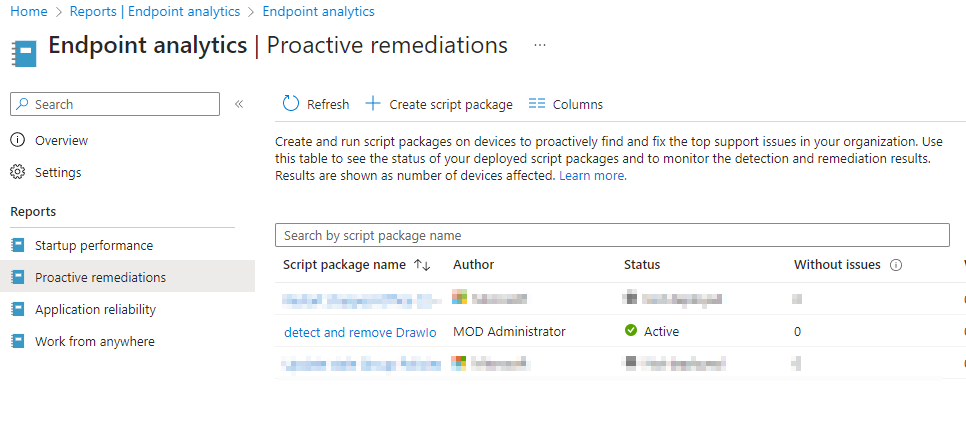
- go to Proactive Remediations in Intune Admin Portal
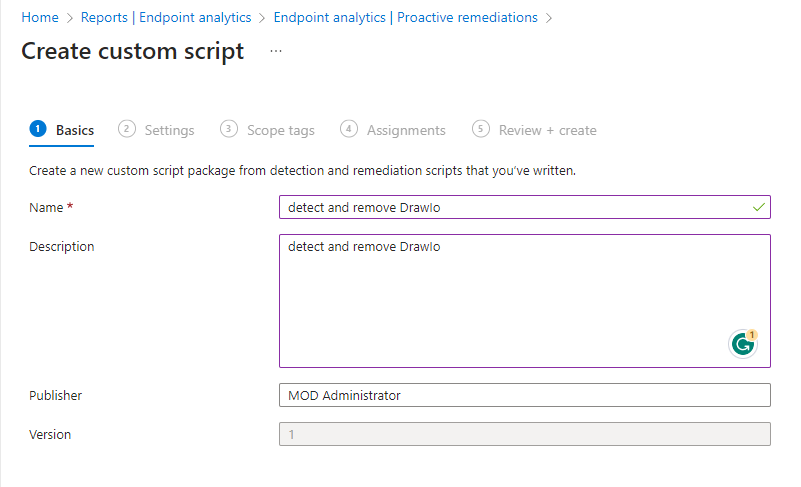
- create a new package
- under Basics: give it a name and description and click next
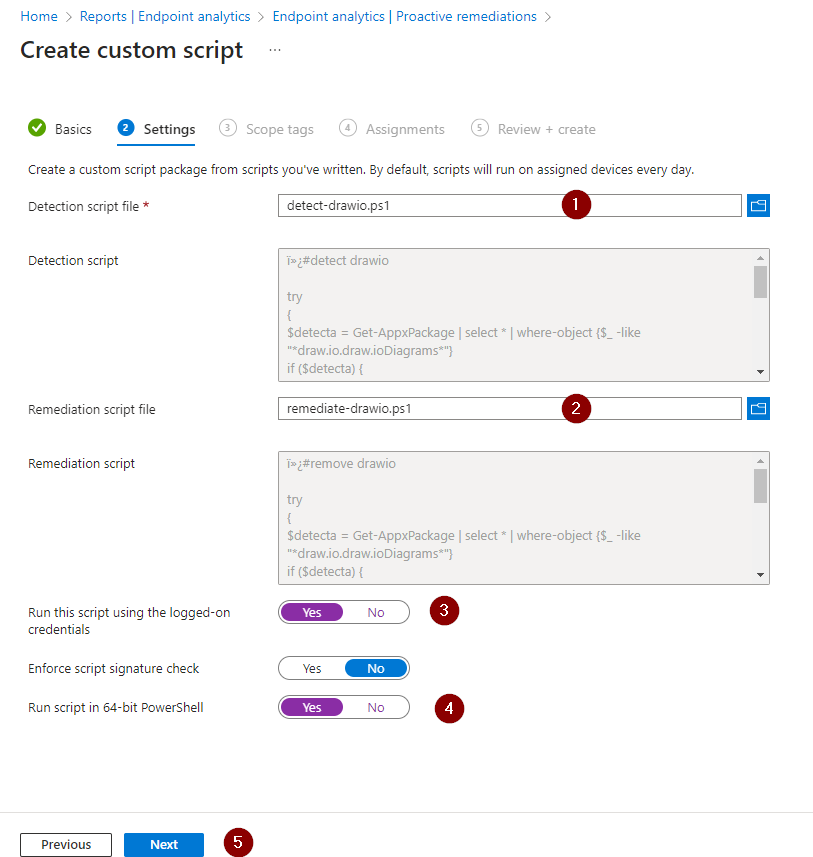
- under Settings:
- Search for the detect-drawio.ps1 file and assign to the “Detection script file”
- Search for the remediate-drawio.ps1 file and assign to the “Remediation script file”
- set “Run this script using the logged-on credentials to YES
- set “Run script in 64-bit PowerShell to YES
- click next
- under scope tags, leave default options, and client next
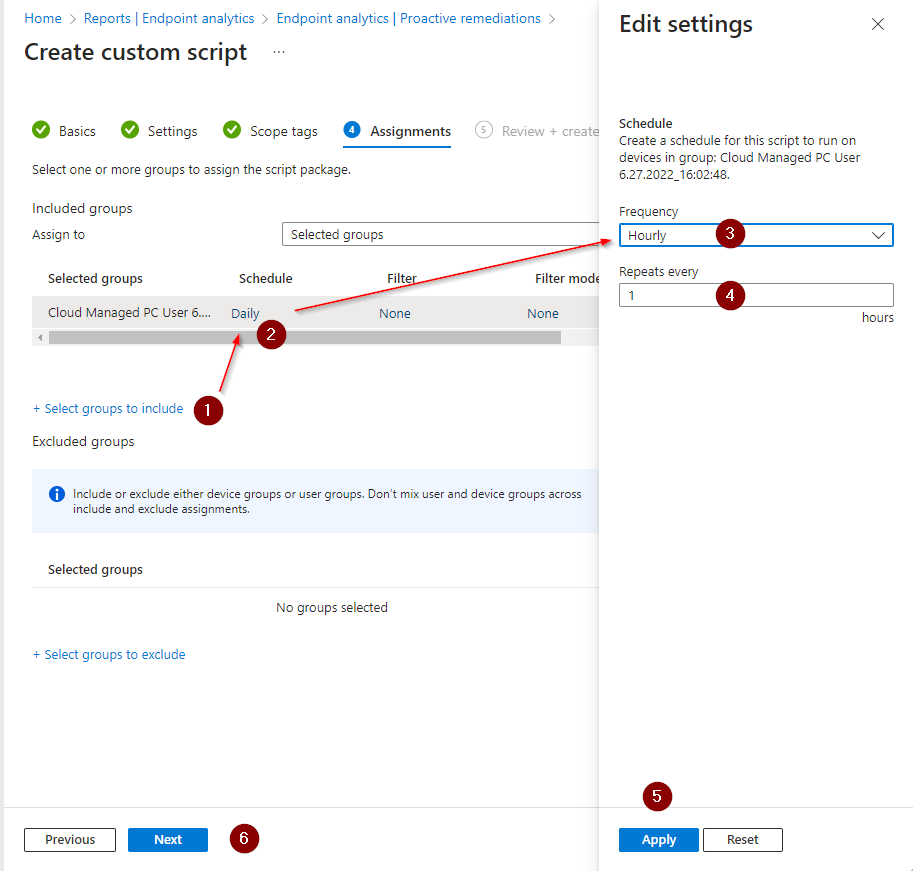
- under assignments
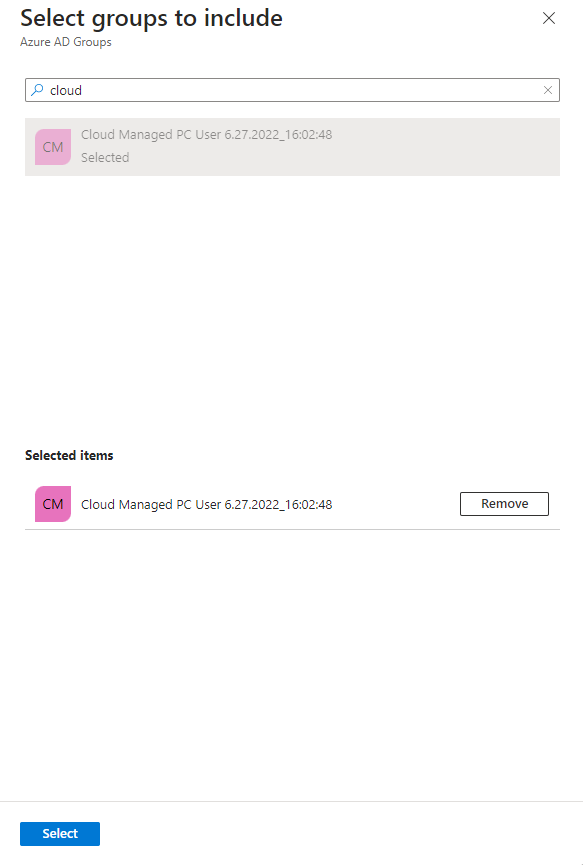
- click on + select groups to include
- click on daily under the schedule
- select the frequency: hourly
- set repeats every: 1 hour
- click apply
- then click next
- then click create under review and create
- wait of the Proactive Remediation script package to be published
- go back to the affected device and do the following:
- restart “Microsoft Intune Management Extension” or
- settings \ accounts \ access work or school \ “select the connect by or connected to” option depending on your device enrollment, scroll down and click on sync or,
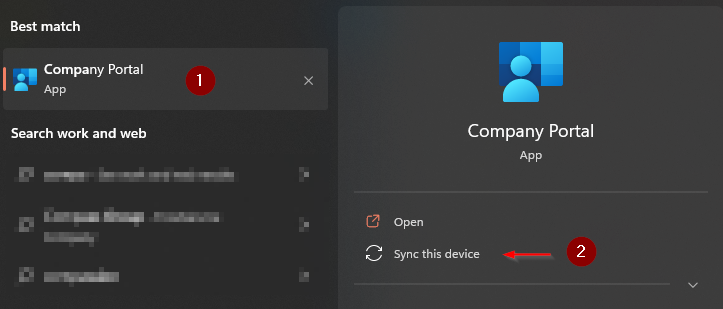
- press the windows key, search for the company portal and click the option “sync this device” and wait
Screenshots (below)
Thanks,
Thiago Beier
Toronto, Canada
Originally published at thebeier.com