Hi there
In this post I’m covering the Teams Whiteboard. Microsoft defines Whiteboard as a free-form, digital canvas where people, content, and ideas come together.
If you have this feature enabled under your organization you should see on Teams you’re belong to or on meeting you have been invited to.
To enable go to
-
Go to the Microsoft 365 Admin Center.
- On the Admin Center home page, go to Settings, and then choose Services & add-ins.

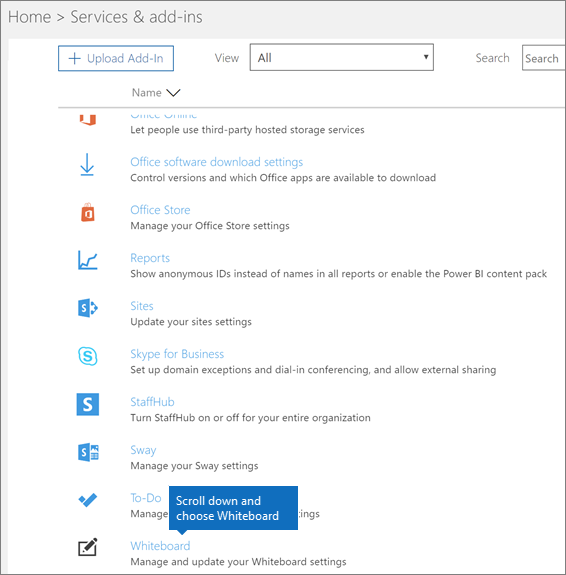
- On the Service & add-ins page, scroll down, and then choose Whiteboard.
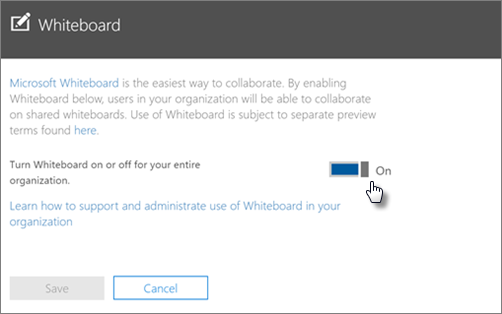
- On the Whiteboard panel, toggle Turn Whiteboard on or off for your entire organization to On.
-
Click Save.
To use it or go to a Team or to any Meeting you’ve invited to and click at the pinned app – Whiteboard.

If that’s your first time using Whiteboard on Windows 10 then you’ll be prompted to download it from Microsoft Store. Please follow the wizards.


It will auto launch if needed.

go through the Welcome screen


Now you’re ready to use it
Check the user experience.

You can add your image from library, camera capture or search using Bing.
You can add list on screen and order alphabetically when you’re finished.

You can change default settings.

You can also add Notes to your whiteboard.

When you’re finished you can post to a Teams or Export

Post to a Teams


Export as image

Pick a folder to export and save as the image extension selected .png or .svg

Reference
https://docs.microsoft.com/en-us/microsoftteams/manage-whiteboard
https://support.microsoft.com/en-us/office/enable-microsoft-whiteboard-for-your-organization-1caaa2e2-5c18-4bdf-b878-2d98f1da4b24?ui=en-us&rs=en-us&ad=us
Thanks,
Thiago Beier




Originally published at thebeier.com