Hi everyone.
📢 Updated: 7/18/2023 – get-windowsautopilotinfocommunity 3.0.4 and its parameters ‘case sensitive’
If you have followed me on twitter and linkedin
You probably saw the post about using get-windowsautopilotinfocommunity.ps1 to register devices in Windows autopilot devices by Andrew Taylor link1. He’s published a community version 👏🏻 and I’ve tested it in a few scenarios:
- brand-new devices to Windows autopilot devices (registering device hash into your M365 tenant)
- existing devices in Windows autopilot devices (GroupTag update)
I have used Powershell modules to register devices in autopilot and also to update Windows autopilot devices‘ GroupTag (used by dynamic groups) to assign devices to Windows Autopilot Deployment profiles (HAADJ or AADJ).
📢 Download from 👉🏻 https://github.com/andrew-s-taylor/WindowsAutopilotInfo
or Install it from PowerShell Gallery
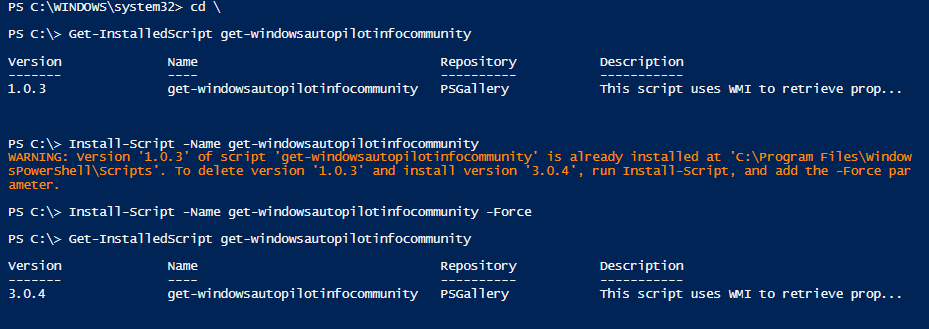
Install-Script -Name get-windowsautopilotinfocommunity
Get-InstalledScript get-windowsautopilotinfocommunity
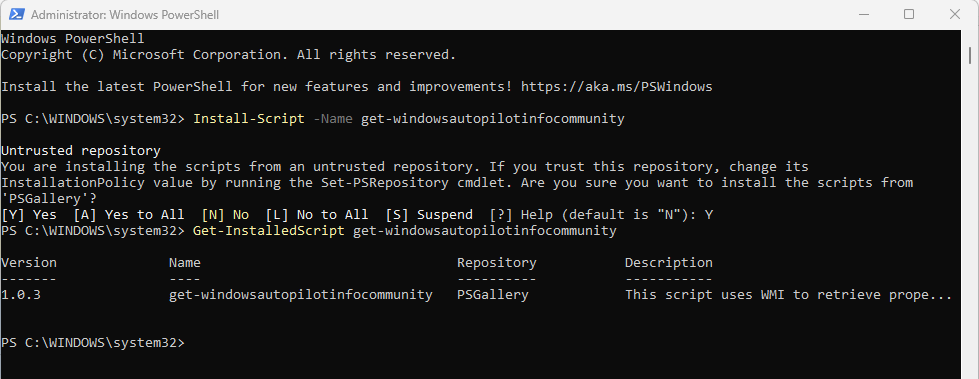
Today’s version 7/19/2023 (upgrade process)
Registering brand-new device scenarios
.\get-windowsautopilotinfo.ps1 -Online -TenantId <your-tenantid-here> -AppId <your-appid-here> -AppSecret <your-secret-here> -GroupTag “GroupTagHere” -Assign -Verbose
or
Set GroupTag as HYBRID if you’re targeting a Hybrid Azure AD joined Windows autopilot deployment profile
.\get-windowsautopilotinfo.ps1 -Online -TenantId <your-tenantid-here> -AppId <your-appid-here> -AppSecret <your-secret-here> -GroupTag “HYBRID” -Assign -Verbose
Set GroupTag as AADJif you’re targeting an Azure AD joined Windows autopilot deployment profile
.\get-windowsautopilotinfo.ps1 -Online -TenantId <your-tenantid-here> -AppId <your-appid-here> -AppSecret <your-secret-here> -GroupTag “AADJ” -Assign -Verbose
Set GroupTag as HYBRID if you’re targeting a Hybrid Azure AD joined Windows autopilot deployment profile with Reboot after assignment
.\get-windowsautopilotinfo.ps1 -Online -TenantId <your-tenantid-here> -AppId <your-appid-here> -AppSecret <your-secret-here> -GroupTag “HYBRID” -Assign -Verbose –Reboot
Existing device scenarios (swapping devices between different Windows autopilot)
Set GroupTag as GroupTagHere if you’re targeting a specific Windows autopilot deployment profile
.\get-windowsautopilotinfo.ps1 -Online -TenantId <your-tenantid-here> -AppId <your-appid-here> -AppSecret <your-secret-here> -GroupTag “GroupTagHere” -Assign -Verbose
Set GroupTag “” as EMPTY if you’re targeting a your tenant default Windows autopilot deployment profile. Most of the default Intune scenarios.
.\get-windowsautopilotinfo.ps1 -Online -TenantId <your-tenantid-here> -AppId <your-appid-here> -AppSecret <your-secret-here> -GroupTag “” -Assign -Verbose
I hope you enjoy it.
Wondering how to automate some tasks?
Check these posts
#mdm #autopilot #registration
Thiago Beier
Originally published at thebeier.com