This is part 2 of Windows Autopilot deployment profiles – Part 1 here.
In this post, I’m covering Azure AD Joined devices (AADJ).
Summary
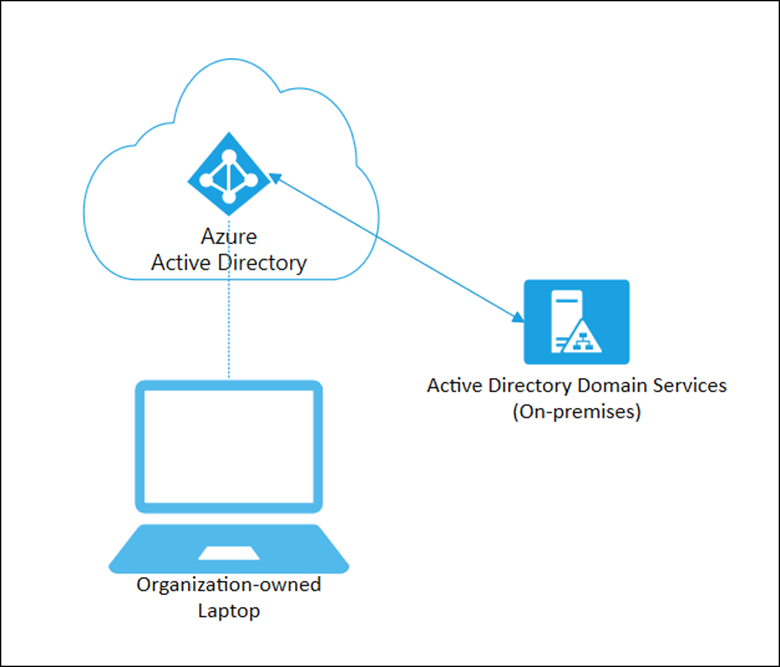
PROS
- cloud-based central management for devices
- settings
- policies
- application packaging
- windows updates/features updates/quality updates and OS upgrade
- cloud-based or synced user central management (complex)
- integration with cloud-based automation tools (Puppet, Jenkins, Ansible)
CONS
- if you’re moving out of HAADJ (Hybrid Azure AD joined) scenario there’s a lot to be done:
- Migrate GPOs to CSP/Intune settings and policies
- Migrate ADCS/PKI to a cloud-based solution
- Retire VPN connection to on-premises endpoint / replace by cloud-based VPN (pointing to Azure VPN gateway)
- extend an on-premises network to Azure VNETs
- if you have a co-managed scenario with SCCM need to run a stagged migration
Initial Setup
Go to the Endpoint Manager home page
- Devices
- Enroll Devices
- Windows enrollment
- select Deployment profiles (under Windows Autopilot Deployment Program)
- or direct link
Click “+ Create profile” and under Basics
- give it a Name:
- give it a Description:
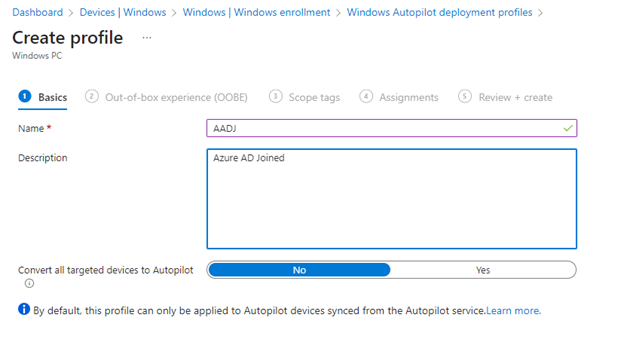
click Next
Under Out-of-box experience (OOBE)
- Allow pre-provisioning deployment: Yes
- leave everything else default
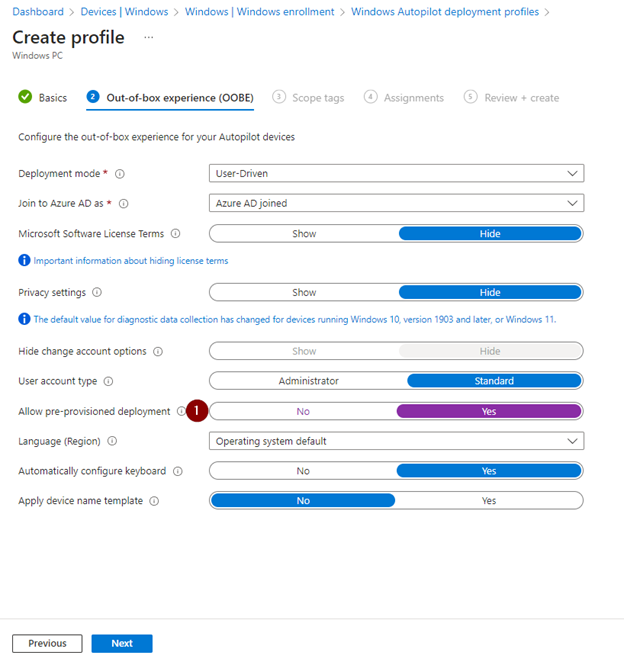
click Next
under Scope tags
- leave default
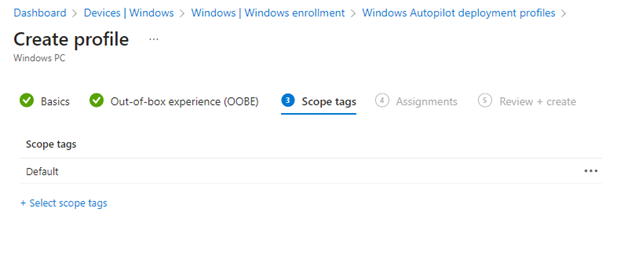
click Next
Under Assignments
- Included groups:
- Excluded groups:
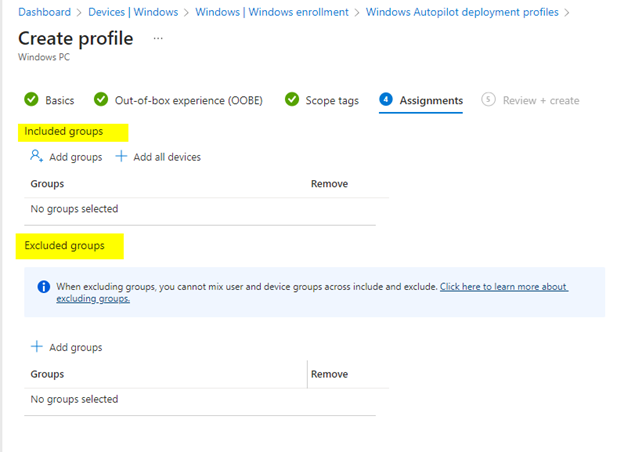
click Next
under “Review + create”
- check your settings
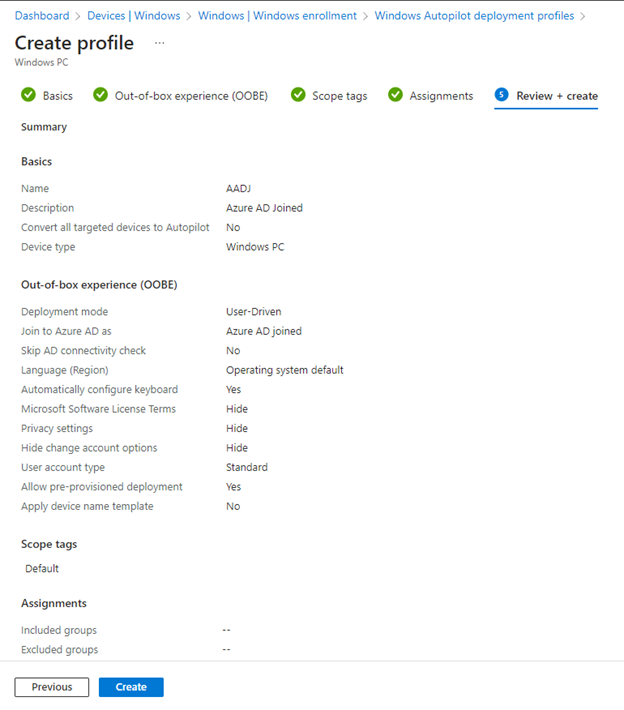
click Next
wait until profile is created
you now have 2 Windows autopilot deployment profiles created (Post1 and this post completed)
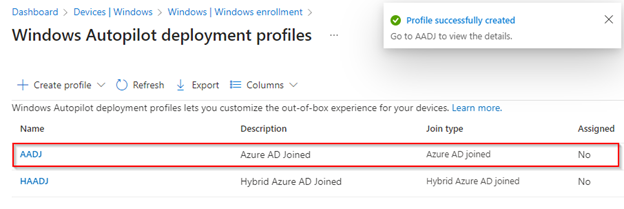
Go back to each profile and assign its “Dynamic device security groups” before you proceed with Autopilot on existing devices.
Make sure all devices are assigned to the proper profile under “Profile status”
Windows Autopilot devices – Microsoft Intune admin center

Cheers,
Thiago Beier
Canada ON
Originally published at thebeier.com